Cultured IDE Plugin
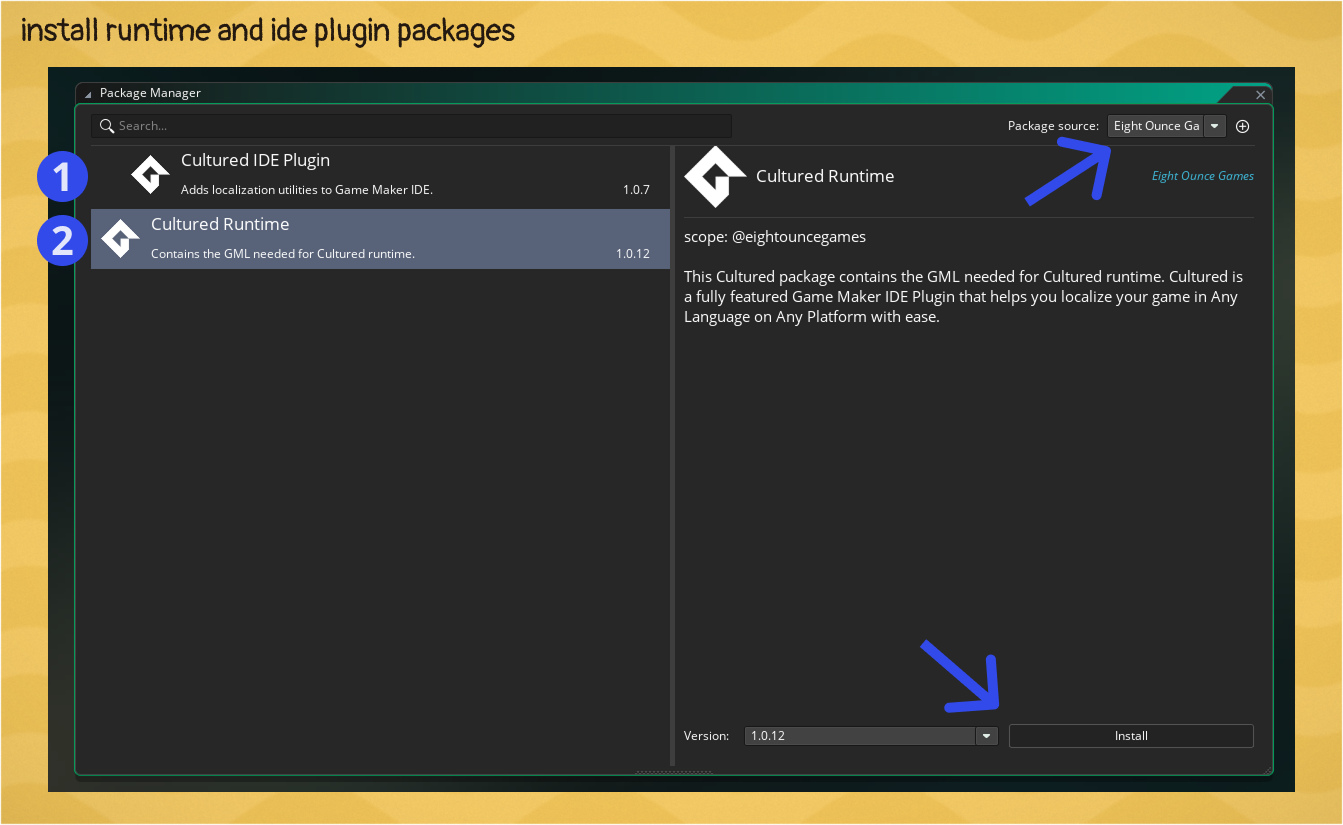
The Cultured IDE Plugin adds a fully featured translation dashboard into the Game Maker IDE itself. The Cultured Dashboard is the main tool you will use for translating and configuring your text. Install is done through the Game Maker Package Manager. For full install instructions see the installation guide
Accessing the Cultured Dashboard
Open the Cultured Dashboard through Tools -> Cultured -> Open Dashboard
Dashboard Main Tab
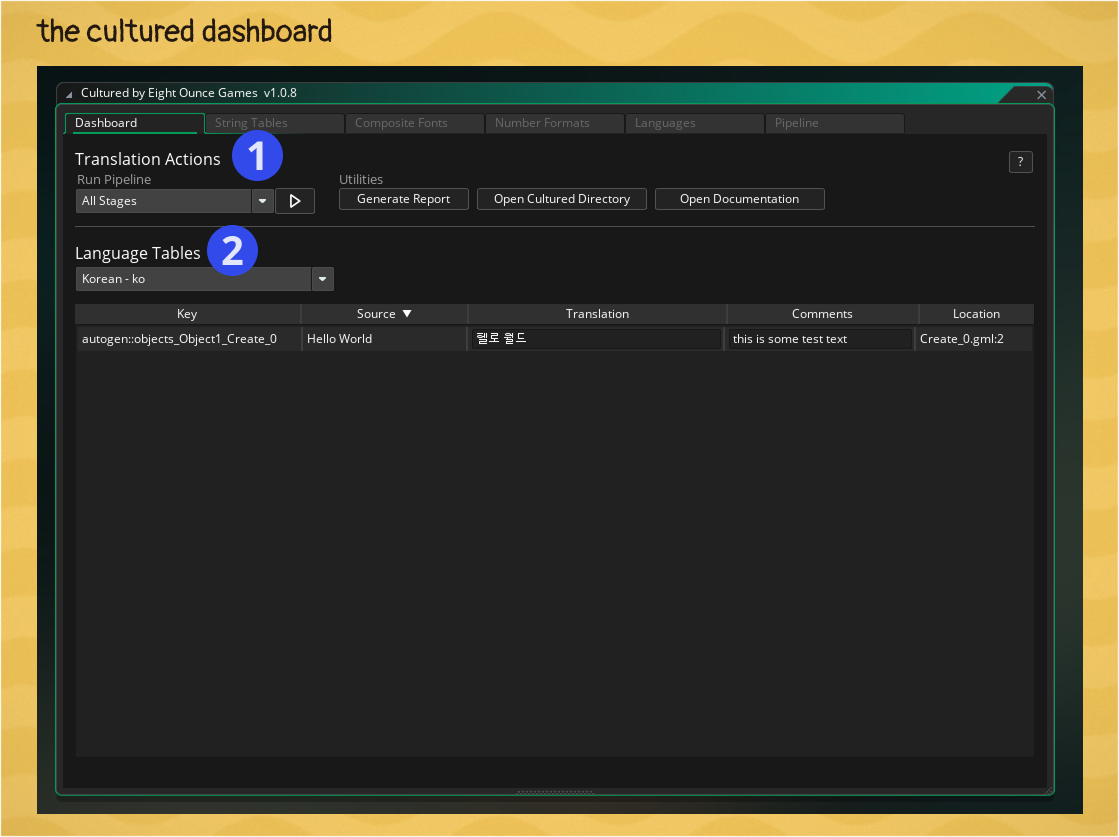
1. Action Toolbar
The action toolbar allows you to run different phases of your pipeline, or run the full pipeline. It also offers utility actions to open the Cultured Working Directory and generated a Health Report on all your text.
Health Reports are visible inside Game Makers Output window and saved in the Cultured Working Directory as a gitignored file.
2. Language Tables
The Language tables section gives you a full orderable look at all your games text, lets you translate text in place, and author contextual comments to be delivered to translators.
String Table Tab
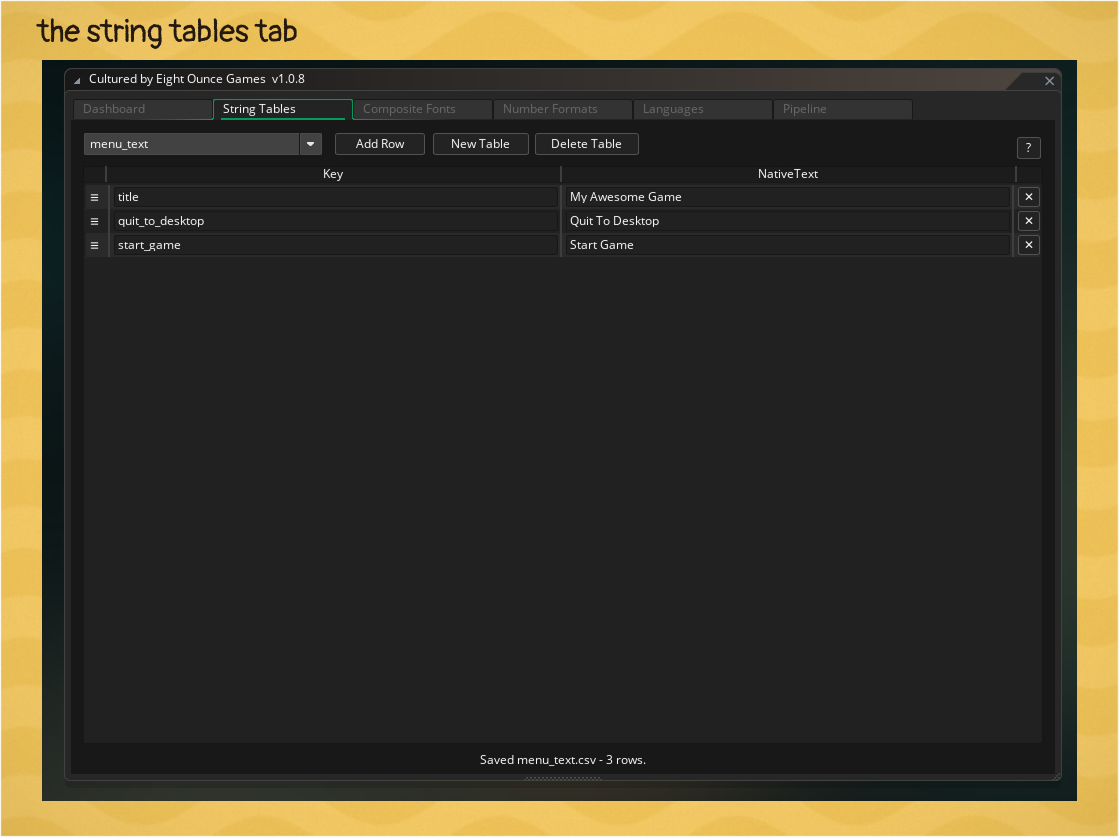 The String Table tab is an editor for the CSV files that live in
 Cultured/StringTables directory. String Tables are for when you want to either reuse text across multiple parts of your game or you just prefer to have all of your text in one location.
You should also utilize the String Table system as a layer for importing text content from other sources like dialogue tree tools. The suggestion is to write a conversion script from your tools output to a string table CSV and add it as a custom stage to your Cultured pipeline.
Composite Font Tab
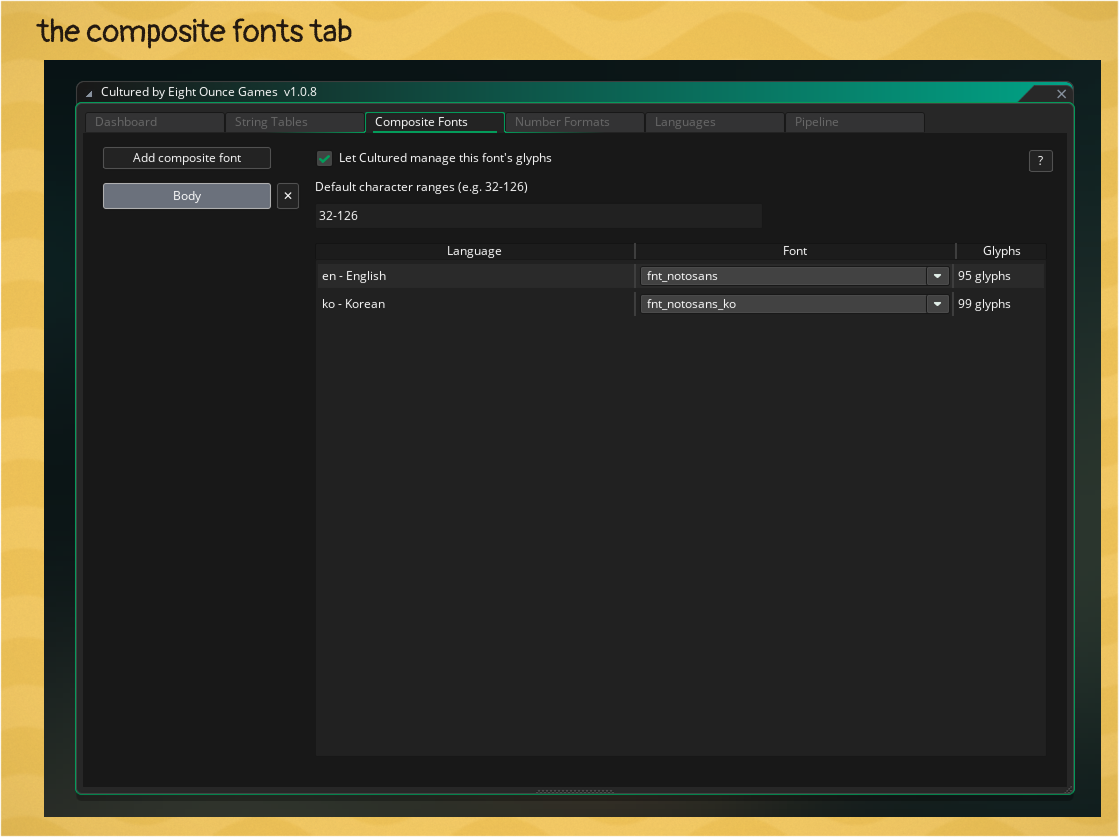 The composite font tab allows you to create composite fonts by a name and assign them Game Maker Font Assets. To link a font asset you must first add it to the Game Maker Asset Browser as a normal Font Asset like you normally would. It will then become available in the dashboard.
This tab also allows you to enable or disable automatic range generation, as well as provide a character ranges to force include. Character ranges can be added at a global, per-language, or per-composite-font level and all the ranges stack together to compose the final range.
Composite Sprite Tab
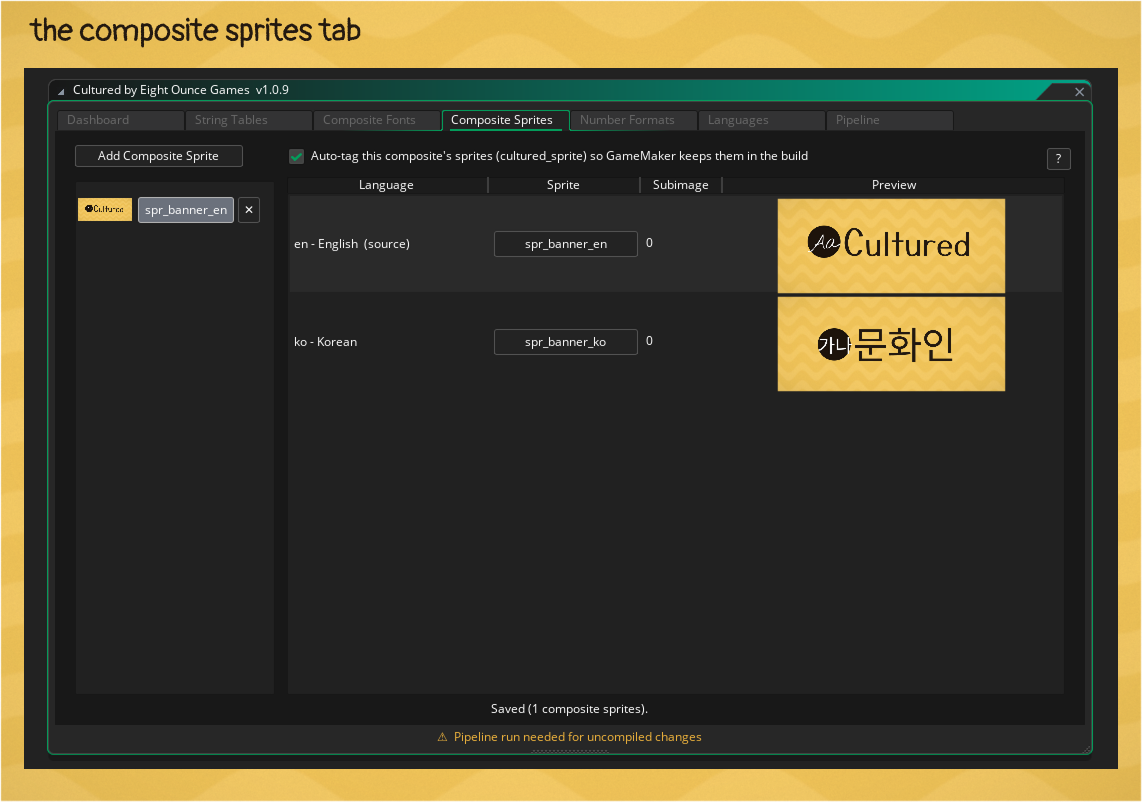 Composite sprites are for when you have graphics that have baked in english words and you'd like to display different graphics depending on the language. Simply add a new Composite Sprite, select your Native Sprite which is used for the lookup in
 gml, and map any additional graphics you'd like per language.
Number Formats Tab
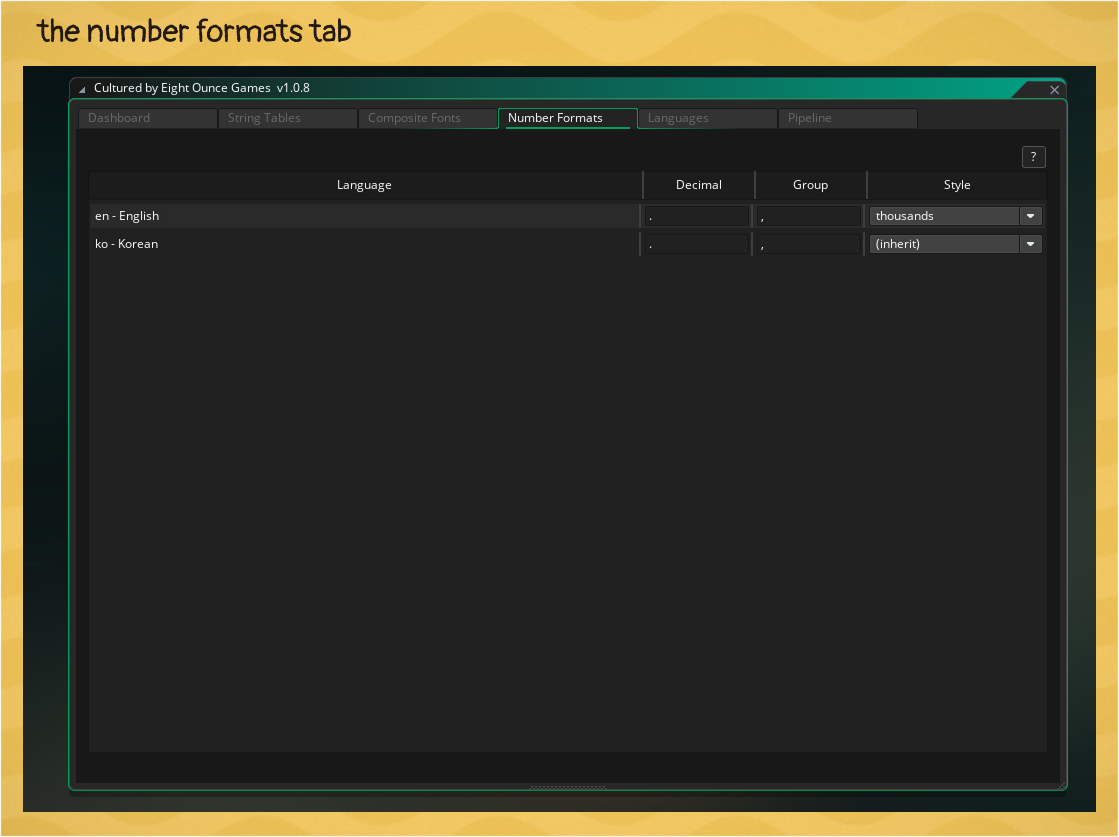 The number formats tab allows you to set up rules for the number formatting in Cultured localized text. It allows you to set grouping and delimiter rule per language.
Languages Tab
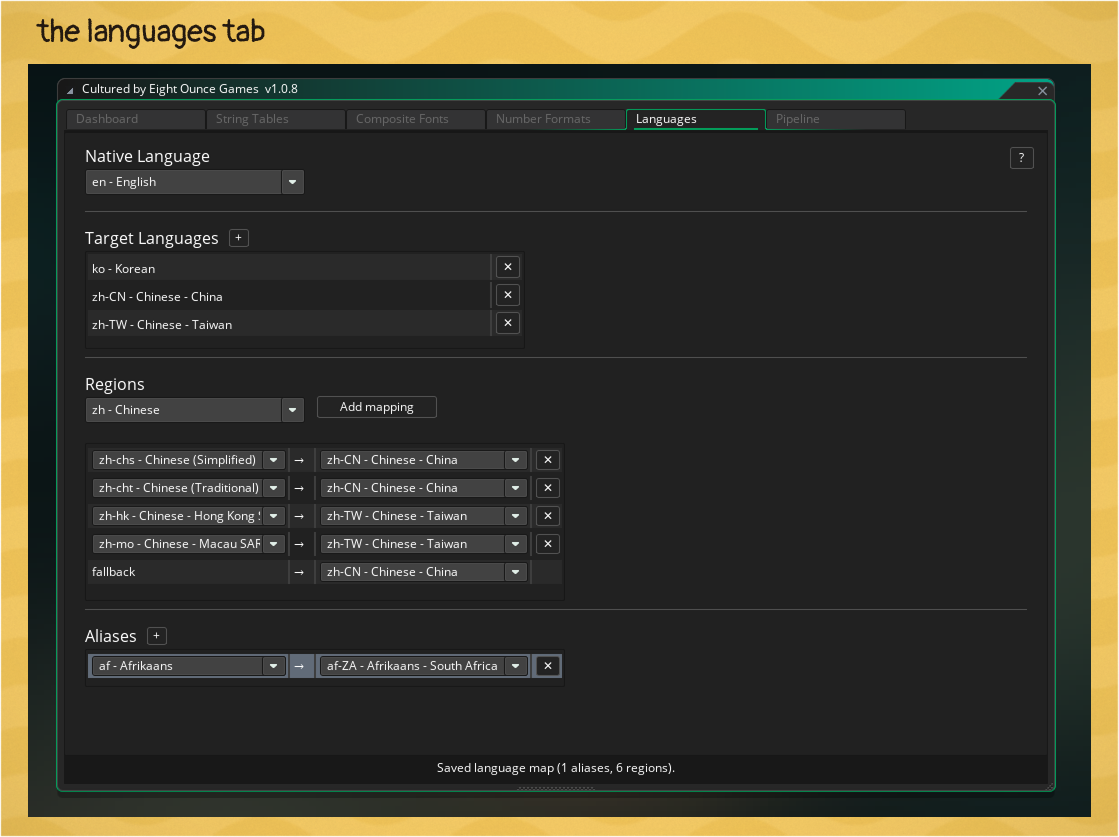 The languages tab is where you choose your Native language, Target Languages, as well as set up any regional mapping or language fallbacks.
Pipeline Tab
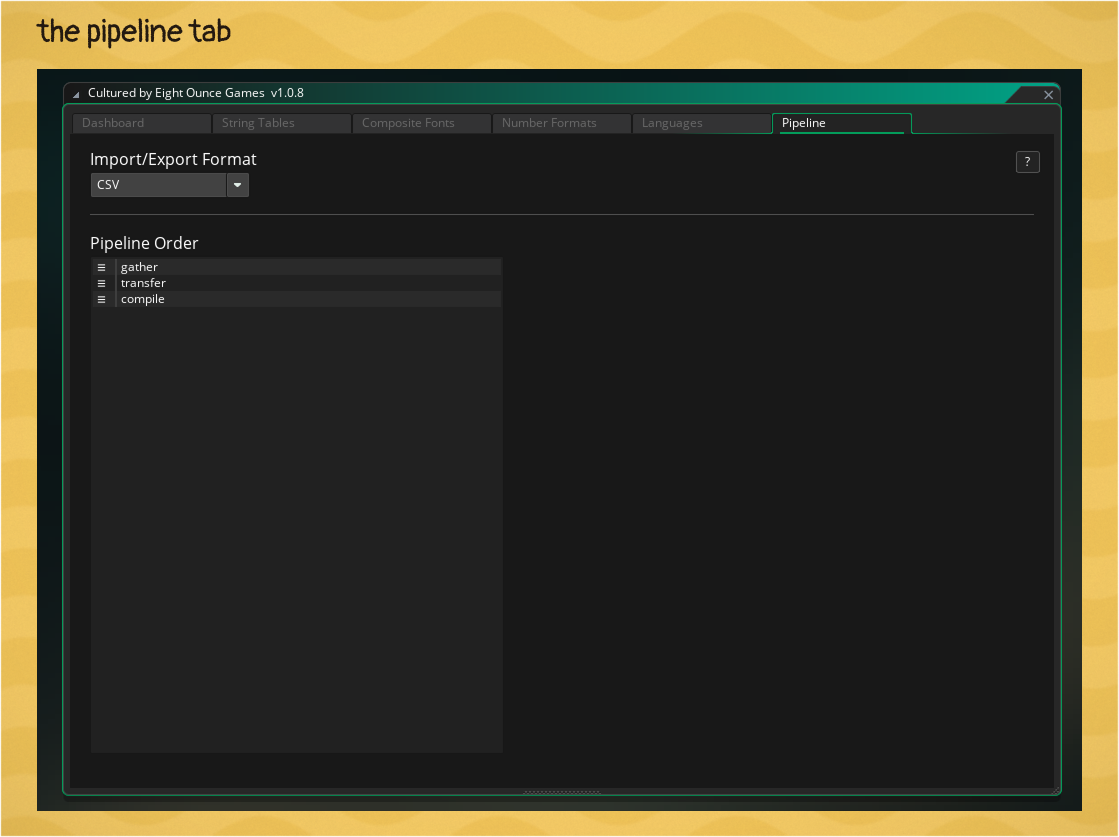 In the pipeline tab you can customize your pipeline.
- Choose if you want your transport file format to be
.csvor.po - Order the pipeline stages in a "full run"